


If Otter is appearing in a Zoom call you did not mean to record, you can remove it from the live meeting, disconnect its Zoom app, or stop it joining future meetings. OtterPilot is also called Otter Notetaker, and it can enter a call as a participant to record and transcribe. The right privacy control depends on whether the issue is happening now or may happen again.
Auto-join is a setting that lets Otter Notetaker enter calendar-linked meetings without you selecting each event. Stopping a live recording does not necessarily change that setting, and disconnecting an app does not handle every calendar permission. Zoom AI features are separate tools built into the Zoom meeting platform, not Otter.
This guide helps you choose a control for the participant in a current call, an account connection, or future calendar events. You can also distinguish a computer app from the access it has to meeting and calendar data.
Key Takeaways
- Any participant can type “stop otter” in Zoom chat to remove Notetakers from the call.
- A Zoom host or co-host can remove a selected Notetaker from the participant list.
- Removing Otter from Zoom’s Installed Apps list disconnects that Zoom integration.
- Changing the auto-join setting does not disconnect Otter from your calendar.
- Uninstalling the computer app does not delete cloud recordings or close your account.
- Zoom AI features and Otter Notetaker have separate controls.
Choose the control that matches the problem, since disconnecting one integration does not automatically handle every account or device setting.
Remove Otter Notetaker During a Zoom Meeting
The quickest way to remove an Otter Notetaker from a live Zoom call is to type “stop otter” in the meeting chat. Any participant can send the command, including someone without an Otter account, so you do not need to wait for the meeting host.
The chat command removes every Notetaker in the meeting if more than one is present. If you want to remove only one, use the Zoom participant controls or the Otter conversation instead. Those choices target the selected Notetaker.
| Method | Who can use it | Action | Effect |
|---|---|---|---|
| Meeting chat | Any participant | Type “stop otter” | Removes all Notetakers in the call |
| Zoom participant list | Host or co-host | Remove selected Otter Notetaker | Removes that Notetaker |
| Otter conversation | Person with access to the conversation | Select Stop Notetaker, then Yes, turn it off | Stops the selected Notetaker |
Send “stop otter” in the meeting chat
Open the meeting chat and send the command as written. Zoom removes the Notetakers from the active meeting, so the command is useful when you need a quick response and do not control the participant list.
If another attendee has started a Notetaker, the same chat command affects that one too. Use it only when removing every Notetaker in the call is acceptable. You do not need to sign in to Otter or have permission to open the meeting notes.
Remove Otter from Zoom’s participant list
A Zoom host or co-host can remove a single Otter Notetaker through the participant list. Open Participants, locate the Otter entry, and use Zoom’s remove control for that participant. This option keeps other Notetakers in the meeting if they are present.
The host may need to confirm the removal in Zoom. Participant controls can differ by meeting settings, but the action is available to a host or co-host with permission to manage attendees. Removing the participant ends its presence in that call; it does not change the account’s future meeting settings.
Stop Notetaker from the Otter conversation
If you can open the live Otter conversation, select Stop Notetaker and then select Yes, turn it off. The Otter conversation is the live recording and transcript page. Its link is available only when the Otter account’s Notetaker chat setting allows access to the notes.
When you need to preserve other Notetakers in the call, do not use the chat command; it removes every Notetaker present.
If the chat command would remove other Notetakers too, use the participant list or Otter conversation to stop only the selected one.
How to Remove Otter.AI From Zoom
To disconnect Otter.ai from your own Zoom account, remove it from the Installed Apps list in the Zoom web portal. This change applies to the Zoom integration connected to that account, not every app or calendar permission associated with Otter.
Removing Otter.ai from Zoom disconnects that integration, but does not uninstall the computer application. It also does not, by itself, revoke Otter’s separate permission to read future calendar events. Treat the Zoom app permission and calendar access as separate controls.
Remove Otter from your Zoom account
Use the Zoom web portal in a browser, then follow these steps:
- Open Advanced in the Zoom web portal.
- Select App Marketplace, then Manage.
- Open Installed Apps and find Otter.ai.
- Select Remove for the Otter.ai app.
The removal ends the Zoom account connection that lets the integration work through Zoom. It is different from uninstalling the Otter desktop app from Windows or Mac. That local app can remain installed after the Zoom portal no longer lists the integration.
Check what the Zoom app removal changes
Otter may still have a calendar connection after you remove its Zoom app permission. A calendar connection can provide access to future events, while the Zoom app permission controls the integration with your Zoom account. One permission does not stand in for the other.
| Control | Where to act | What it changes | What it does not change |
|---|---|---|---|
| Zoom Marketplace removal | Zoom web portal, Installed Apps | Disconnects the Zoom integration | Calendar access or local desktop app |
| Otter calendar disconnection | Otter account calendar settings | Removes calendar connection | Zoom app permission or desktop app |
These controls address different access routes, so choose based on what you want to stop. If the Zoom integration alone is the concern, removing the app is the targeted action. If Otter still sees upcoming meetings, inspect the calendar connection separately.
After removing the app, check the Otter calendar connection separately if Otter still has access to upcoming events.
Stop Otter.ai From Joining Future Zoom Meetings
Set AI Notetaker to “Meetings I manually select” to stop it automatically joining calendar-linked meetings. Manual selection means you choose the meetings where Otter may join, rather than letting the default add it to every eligible event.
Disabling auto-join prevents automatic entry, but does not disconnect the calendar. In Otter, open Account Settings, select Meetings, and change the AI Notetaker setting to “Meetings I manually select.” Calendar access can remain connected after this change.

Set auto-join to manual selection
Use the meetings setting to change the default for calendar-linked meetings. With “Meetings I manually select,” you must choose meetings individually before Otter joins them. That gives you a decision point for each event instead of automatic entry based on the calendar.
Changing the default does not erase choices already saved for individual calendar events. Events you previously toggled on or off keep their own settings. Review those events directly, because an earlier selection can still determine what happens for that meeting.
Review calendar events you changed before
Use this short checklist after changing the default:
- Open Otter Account Settings and select Meetings.
- Set AI Notetaker to “Meetings I manually select.”
- Review upcoming calendar events you previously toggled.
- Turn off Otter for any event where you no longer want it to join.
This review matters most for recurring meetings or events you edited individually. A new default does not replace each event’s saved choice, so check the actual upcoming meeting instead of relying on the account-level setting alone.
If you also want to stop Otter from accessing calendar information, disconnect the calendar separately. The manual-selection setting changes joining behavior, not the calendar connection or other permissions.
Check upcoming events you had individually toggled, because their existing choices remain in effect after the default changes.
Block the Zoom App at the Account Level
A Zoom administrator can disable or remove Otter.ai for internal users, but that action alone does not prevent an external participant from bringing Otter. Organization-wide controls manage the app’s availability to users in the Zoom account; they do not automatically control every attendee’s own account or device.
Disabling the app affects internal users, not external participants using Otter independently. An administrator can add a separate meeting-entry check with the Waiting Room, where an attendee must be admitted before joining the call.
Disable or remove Otter for internal users
A Zoom administrator can manage Otter.ai through the account’s app management area. Go to marketplace.zoom.us, then open Manage, Admin App Management, and Apps on Account. Select Manage App to disable or remove Otter.ai for internal users.
Disabling blocks the app’s use by users in the organization’s Zoom account. Removing it takes the app off the account’s available apps. Neither action should be treated as a universal block on outside attendees, who may have their own access to Otter.
| Control | Who manages it | Where or how | Scope |
|---|---|---|---|
| Disable Otter.ai | Zoom account administrator | Apps on Account, Manage App | Internal users |
| Remove Otter.ai | Zoom account administrator | Apps on Account, Manage App | Removes account availability |
| Waiting Room | Meeting host or account administrator | Enable the meeting Waiting Room | Participant admission |
Use the Waiting Room for outside participants
The Waiting Room adds a check before participants enter a meeting. The host can review people waiting to join and admit them as needed. This can help identify an unexpected participant, including a meeting assistant, before it reaches the call.
The Waiting Room does not block or disable the Otter app. It changes how people enter the meeting, while app management changes availability for internal users. These controls address different risks, so an organization can use both when appropriate.
Use the Waiting Room as a separate admission check when you need to review who enters a Zoom meeting.
Turn Off Zoom AI Features Without Confusing Them With Otter
Zoom’s host control for its own AI features is separate from the controls for Otter Notetaker. Zoom AI features are Zoom’s tools, while Otter is a separate meeting assistant that may appear as a participant in the meeting.
Stopping Zoom AI features does not remove Otter from a call. During a Zoom meeting, the host can select the Zoom AI icon, choose Stop Zoom AI features, and confirm the action.
In that flow, Zoom may offer the host an optional choice to delete all Zoom AI-generated assets. Select that option only if you want those assets deleted as part of stopping the Zoom tools. It is separate from removing a third-party participant or changing app access.
The names can be easy to mix up when both tools relate to meeting notes or data. Look at the actual participant list to identify whether Otter is in the call. A Zoom AI icon controls Zoom’s own features, not the Otter Notetaker participant.
Stopping Zoom AI features changes the Zoom tools running in that meeting. Removing Otter requires a live Notetaker control, an app permission change, or another Otter access setting. The host’s AI menu does not disconnect integrations.
If Otter is the participant in question, use an Otter removal or access-control option rather than the Zoom AI features control.
Remove Otter.ai From Microsoft Teams
To remove Otter from a live Teams call, open Participants, select More beside Otter.ai, and choose Remove from meeting. This removes the selected participant from the current meeting, but does not block the app from joining future calls.
Only an administrator can block or limit the app for an organization through Teams Admin Center. For a permanent organization-level restriction, an administrator can manage Otter.ai under Teams apps, Manage apps.
| Control | Who can act | Location | Effect |
|---|---|---|---|
| Remove from meeting | Organizer or presenter with permission | Participants, More beside Otter.ai | Ends its presence in that call |
| Turn off call and meeting notifications | Individual Teams user | Settings, Notifications, Meetings and Calls | Hides notifications |
| Block or limit the app | Teams administrator | Teams Admin Center, Teams apps, Manage apps | Blocks or limits availability |
Remove Otter during a Teams meeting or mute its notifications
Organizers and presenters may have meeting-control permissions to remove a participant. Open Participants, use More beside Otter.ai, then choose Remove from meeting. A participant can also type “stop otter” in the Teams chat to remove Notetakers from the live call.
Turning off notifications is a different choice. In Teams, open Settings, then Notifications, then Meetings and Calls. Turn off “Show notifications during calls and meetings” to hide those notifications. This does not remove Otter or prevent it from joining.
Restrict or block Otter in Teams Admin Center
An administrator can go to Teams Admin Center, select Teams apps, then Manage apps, and find Otter.ai. From there, the administrator can limit the app to specific users and groups or select Block. That is the organization-level answer when you need to stop users from using the app through Teams.
A live removal handles only the current participant. Notification settings affect what you see on screen, not the app’s availability. For “permanently” removing Otter from Teams across an organization, blocking it in the admin center is the broadest listed control.
For organization-wide prevention, have an administrator block Otter in Teams Admin Center rather than relying on a participant-level removal.
Remove Otter.ai From Outlook
In New Outlook or Outlook on the web, remove Otter from Apps, Manage your apps. That client-level step removes the app from your Outlook account view, but an organization-wide deployment may need separate administrator action.
Removing an Outlook app does not necessarily revoke Otter’s separate calendar permission. App availability and calendar access are distinct, so removing one should not be treated as changing the other.
Remove the Outlook app from your account
In New Outlook or Outlook on the web, open Apps and choose Manage your apps. Find Otter, select the three-dot menu beside it, and choose Remove. This is the direct path for removing the app from your user’s Outlook client.
If Otter appears in one specific meeting, you can remove it from that meeting’s controls instead. Select the Otter app in the meeting controls, choose More options, and select Remove. This removes it from that meeting rather than changing an organization deployment.
Remove Otter from a meeting or Microsoft 365 deployment
A Microsoft 365 administrator can remove an Otter deployment through Settings, then Integrated apps. Removing the app only from an individual user’s Outlook client may not be enough when an administrator deployed it for the organization.
Check which route applies before assuming the app is gone for everyone. A user’s removal affects that client, while an Integrated apps change addresses the organization deployment. Calendar permission remains a separate access route and may need its own review.
Removing an app from a meeting is useful when it appears on one event, while a deployment change affects its organizational availability. Neither step should be confused with closing an Otter account or changing other connected services.
If an administrator deployed Otter for the organization, verify the Integrated apps deployment is removed instead of relying only on a user’s client.
Remove Otter.ai From Google Meet
To stop Otter from joining Google Meet through your calendar, remove its calendar integration and revoke its Google account access. Both routes matter if you want to cut off calendar-based entry and the broader third-party connection.
Removing future access does not delete meeting data already stored in Otter. Access changes affect what the integration can do going forward; they do not, by themselves, remove existing conversations or recordings.
Revoke the Google Calendar integration
Start in Google Calendar settings and remove or revoke the Otter calendar integration. This disconnects the calendar route that can make scheduled events available for Otter to join. It is separate from the broader permission listed in your Google Account.
If Otter is already in a Google Meet call, a participant can type “stop otter” in the meeting chat. Anyone in the meeting can send the command, including someone without an Otter account. It removes Notetakers from that live call.
Remove Otter’s Google account access
After changing the calendar integration, open Google Account, then Security, then Third-party apps with account access. Select Otter.ai and choose Remove Access. This revokes the Google account connection, which is a separate step from removing the calendar integration.
Check both places if you want to end both routes. Calendar disconnection addresses event access; the Google account security setting addresses the third-party access entry. Neither action should be treated as a way to erase data already held in Otter.
Confirm both the calendar connection and the third-party access entry are addressed if you want to cut off both routes.
Uninstall Otter.ai or Delete Your Account
Uninstalling Otter from a computer, deleting its account, and revoking its Microsoft mailbox permission are separate actions. Choose by goal: local removal clears the computer app, while account deletion closes the Otter account and Microsoft permission may need separate handling.
Uninstalling the computer app does not delete cloud recordings. It also does not close your account or automatically revoke every connected service’s access.
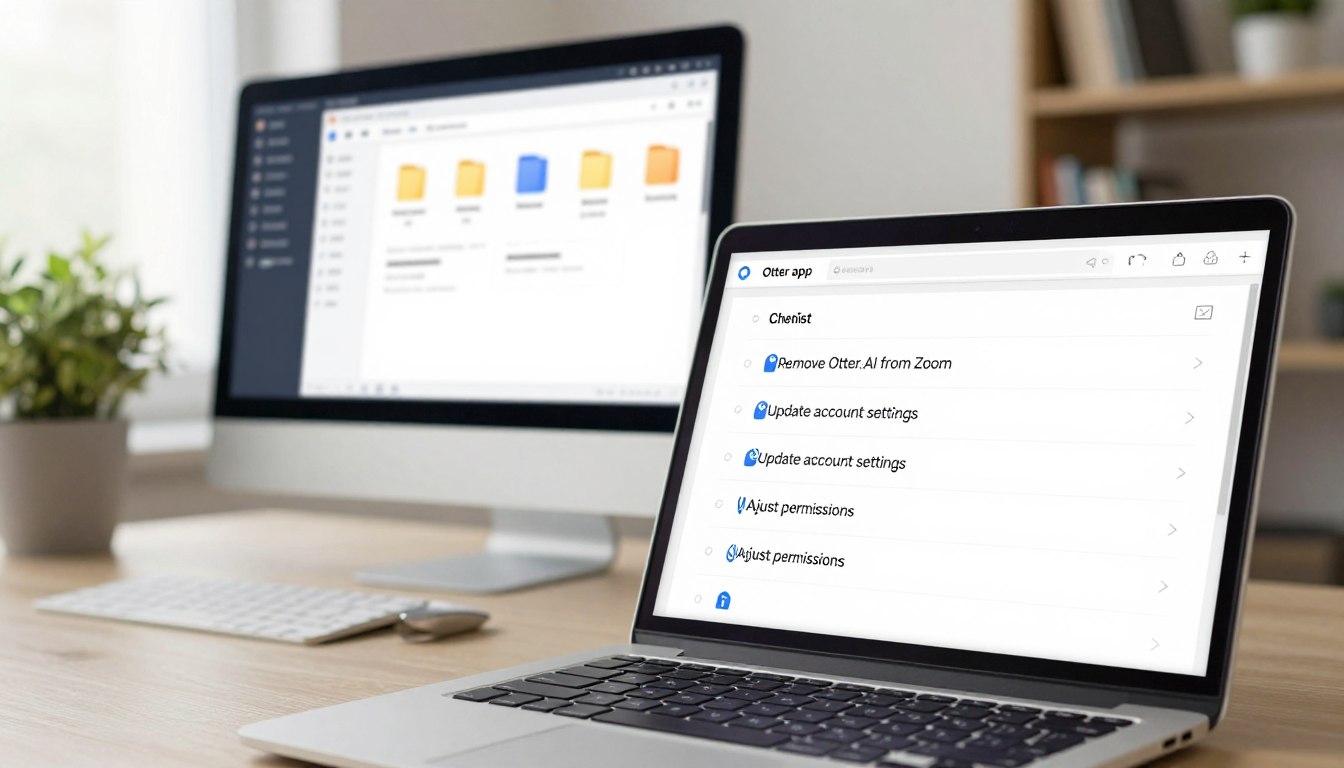
Uninstall the computer app
Use the path for your computer:
- On Windows, open Settings, Apps, Installed Apps, select Otter.ai, and uninstall it.
- On Mac, drag Otter.ai from Finder’s Applications folder to Trash, then empty Trash.
- To close your account, sign in to Otter.ai, then open Profile, Account Settings, General, and Delete account.
- For promotional emails, use the unsubscribe link; meeting-notification controls are separate.
Signing in to Otter.ai is the starting point for account settings and account closure. Follow the deletion flow by entering your Otter password, selecting Verify and continue, then selecting Delete account.
Delete the Otter.ai account and review remaining permissions
An active subscription other than Basic prevents account deletion. If you want immediate deletion while paid time remains, Otter Support can help you forfeit the remaining subscription time. The computer uninstall steps do not affect recordings saved in the cloud.
Deleting your Otter account does not necessarily revoke Microsoft mailbox OAuth permission. A Microsoft administrator can block that permission under security.microsoft.com, Cloud Apps, OAuth Apps. Microsoft mailbox OAuth permission may need this separate security control.
Before deleting an account, remember that the device app, cloud data, and Microsoft mailbox permission are separate; removing one does not automatically remove the others.
Use this checklist to match each action to its effect: uninstall the local app, close the Otter account, review Microsoft mailbox access, and unsubscribe from promotional email. Meeting notifications are not the same as promotional messages, and changing one does not necessarily stop the other.
Before closing an account with an active paid subscription, contact Otter Support if you want to forfeit remaining time and delete it immediately.
Conclusion
Pick the narrowest control that solves your problem, then check any separate calendar or account access you no longer want active. Stopping a current participant and preventing future joins are different tasks, so a quick removal during a call may not change what happens at the next meeting.
If you only need to disconnect the Zoom integration, remove the app from your Zoom account. If Otter is joining calendar events unexpectedly, change the AI Notetaker setting and review events you previously changed.
For a broader privacy cleanup, check connected calendars and platform permissions separately from the computer app or Otter account. That keeps your next step focused on the access you actually want to end.
If the goal is only to stop surprise Zoom attendance, set Otter to manual meeting selection and review upcoming calendar events.
FAQ
How to disable Otter.ai note taker?
Set AI Notetaker to “Meetings I manually select” in Otter Account Settings, then Meetings. This stops automatic entry for calendar-linked meetings, but it does not disconnect the calendar. Review upcoming calendar events you individually toggled before changing the default, since each event keeps its own saved choice. Turn off Otter for any event where you no longer want it to join.
How does Otter.ai work with Teams?
Otter can join a Microsoft Teams meeting through a connected calendar event when its meeting settings allow it. A Teams administrator can manage the app’s availability in Teams Admin Center, including limiting it to selected users or groups, or blocking it. Removing Otter from one live call ends its presence in that meeting, but does not change organization-wide app access.
How do I permanently disable ai on Zoom?
A Zoom host can stop Zoom AI features from the Zoom AI icon during a meeting by choosing Stop Zoom AI features and confirming. The host may also choose to delete all Zoom AI-generated assets in that flow. This control affects Zoom’s own tools, not Otter Notetaker. To remove Otter, use an Otter participant, app, or access control instead.
Can any meeting participant remove Otter Notetaker from a live call?
Yes. Any participant can type “stop otter” in Zoom, Google Meet, or Microsoft Teams chat, even without an Otter account. The command removes Notetakers from that live call. In Zoom, it removes all Notetakers present, so use the participant list or Otter conversation when you need to target only one. Host controls may also allow a selected participant’s removal.
Can I delete my Otter.ai account while I have an active subscription?
No, an active subscription other than Basic prevents account deletion. If you want to delete the account immediately, contact Otter Support to forfeit the remaining subscription time. You can start the deletion flow after signing in to Otter.ai and opening Profile, Account Settings, General, then Delete account. Remember that account deletion may not revoke separate Microsoft mailbox permissions.
If you want to dig further into does technology affect culture positively or, read our Does Technology Affect Culture Positively or guide.
If you want to dig further into what is nitro piston technology air rifle inn, read our What Is Nitro Piston Technology Air Rifle Inn guide.
If you want to dig further into haven technologies and massmutual partnership, read our Haven Technologies and MassMutual Partnership guide.